
Artist Images
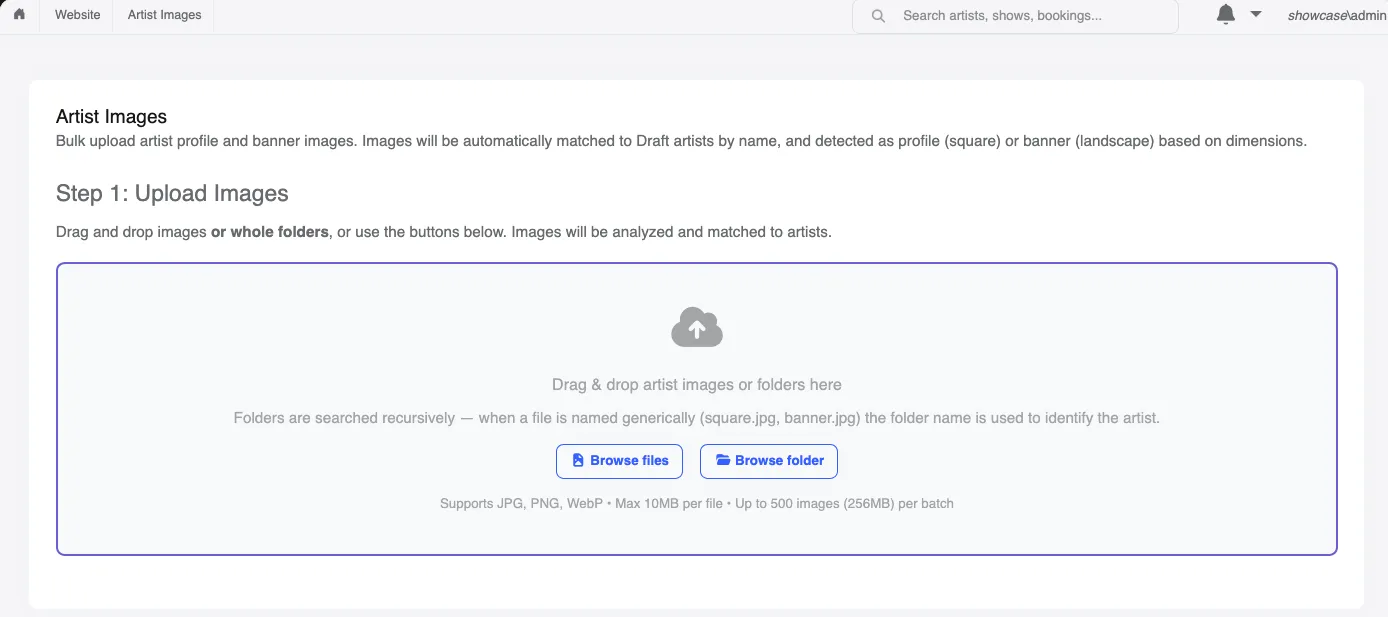
When you’re setting up a lot of artists, e.g. for a festival, uploading images one artist at a time is slow. Artist Images lets you drag in a whole batch of images, or whole folders, in one go. Funny Little Shows works out which artist each image belongs to, and whether it’s a profile or banner image.
A faster way to set up a festival
Section titled “A faster way to set up a festival”- Create your artists first. Add all your artists and their details, and leave them in Draft. See Artist Management. You don’t need to wait for images.
- Collect the images as artists and their management send them in, and save them on your computer.
- Upload them all at once with Artist Images, as described below.
Upload images in bulk
Section titled “Upload images in bulk”- Go to Website > Artist Images.
- Drag your images, or folders of images, onto the upload area. Or use Browse files or Browse folder.
- Funny Little Shows checks each image and shows the results in two lists:
- Matched Images have been matched to an artist, with a match percentage.
- Unmatched Images couldn’t be matched with confidence. For each one, choose the artist from the dropdown or tick Ignore. If an image lost out to a stronger match for the same artist (see below), that artist is pre-selected with an explanation.
- Check the lists, then click Confirm and Upload Images.
Each image is converted to a web-friendly format and resized, and it replaces that artist’s current profile or banner image.
How images are matched
Section titled “How images are matched”Funny Little Shows compares each image’s file name with your artists’ Artist Name and Show Title and picks the closest match. Spelling and word order don’t need to be exact, e.g. anderson-wil.jpg still matches Wil Anderson.
If a file has a generic name, such as square.jpg or banner.jpg, the folder name is used instead. So a folder per artist works well:
Wil Anderson/square.jpgWil Anderson/banner.jpgRAW Comedy/profile.pngFiles named after the artist or show work too:
wil-anderson-square.jpgwil-anderson-banner.jpgraw-comedy.jpgSome things to know:
- Only artists in Draft are matched automatically. When choosing an artist yourself, you can also pick artists that are Under Review.
- Files named like
IMG_1234.jpgin a folder that isn’t named after the artist can’t be matched. You’ll need to choose the artist yourself. - If two images match the same artist as the same image type, only the stronger match is kept. The other one goes to Unmatched Images, so one image doesn’t silently replace another.
Profile or banner?
Section titled “Profile or banner?”The image’s shape decides which image it becomes, not its file name:
| Shape | Becomes | Recommended size |
|---|---|---|
| Square, or close to square | Profile image | 1080 × 1080 px |
| Landscape | Banner image | 1920 × 1080 px |
Each image in the review lists shows its size and whether it will be a Profile or Banner image.
Limits
Section titled “Limits”- JPG, PNG and WebP images only. Other files in a folder are skipped.
- Up to 10 MB per image.
- Up to 500 images, or 256 MB in total, per upload. For more, upload in several batches, e.g. a few folders at a time.
- Finish the review step within 30 minutes of uploading. After that, you’ll need to upload the batch again.
Publishing
Section titled “Publishing”Images for artists still in Draft go live when you publish those artists. If an artist is already public (Public Preview or Public On Sale), their new images are added to your unpublished changes. Publish your website to update their page. A Quick publish is all that’s needed.