
Artists
The Artists page lists every artist and show in your account. From here you can find an artist, change their status, set the order they appear on your website, and update many artists at once.
For the basics of creating an artist and adding sessions, see Artist Management.
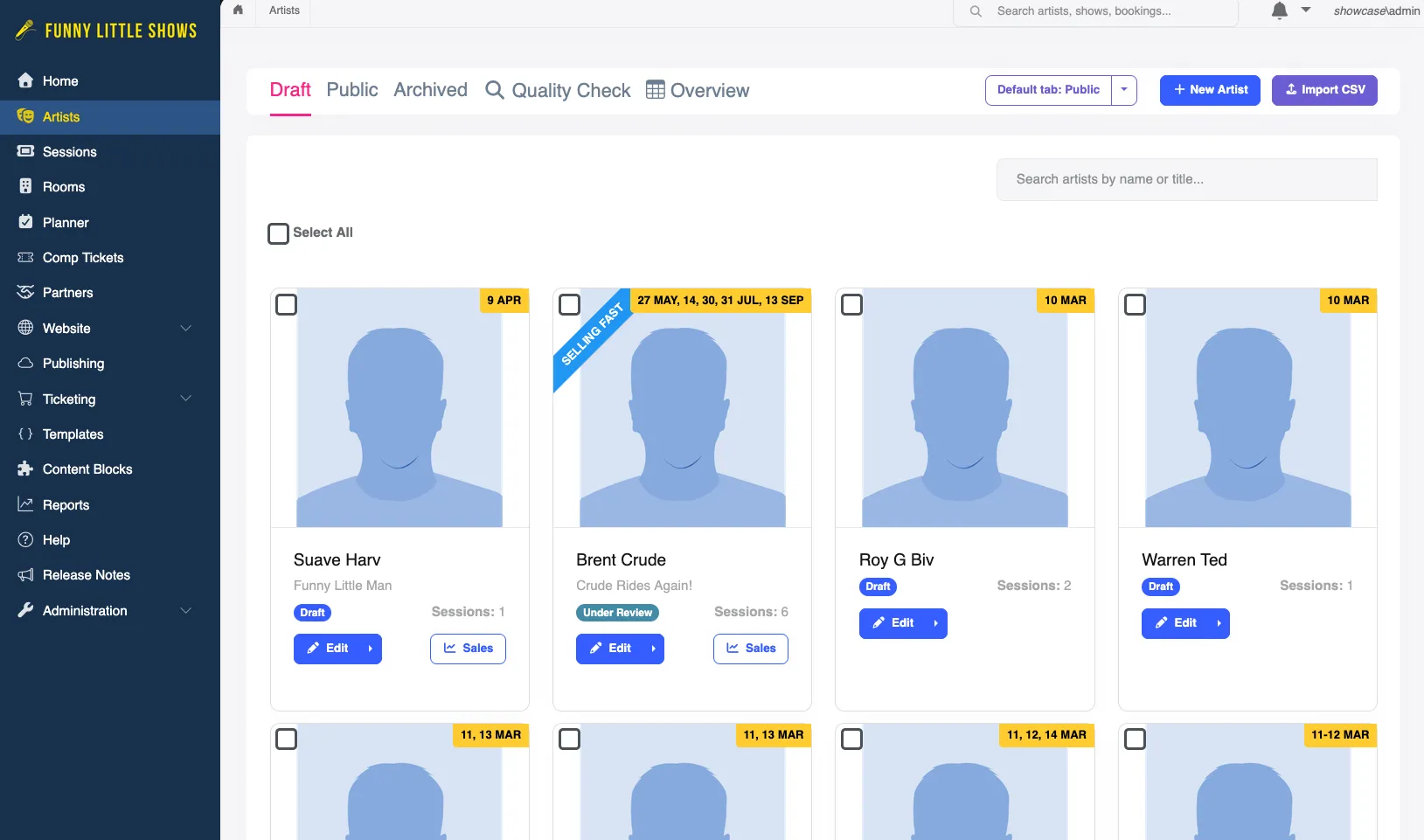
Artists are grouped into tabs by status:
| Tab | Shows artists that are |
|---|---|
| Draft | Draft or Under Review: still being set up, and not on your website yet. |
| Public | Public Preview or On Sale: on your website now. |
| Archived | Archived or Hidden: no longer on your website. |
Festival websites also have two extra tabs:
- Quality Check — a table of every artist that highlights missing or unexpected details before you go live: missing profile or banner images, short descriptions, social media links that aren’t valid web addresses, and how many of each artist’s sessions are public.
- Overview — a grid of every booked artist’s festival details, such as contracts, deal terms, contacts and marketing. Only people with access to festival artist details see this tab.
Choose your default tab
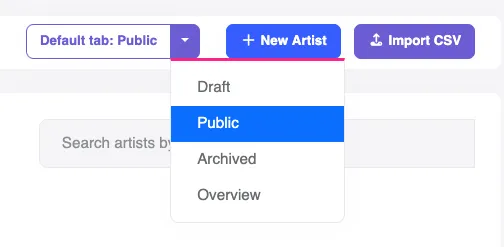
Section titled “Choose your default tab”The Artists page opens on the Draft tab unless you choose otherwise. To open on a different tab, click the arrow next to Default tab and pick one.
This setting is saved for you only. Other people using your account keep their own default tab.
Search
Section titled “Search”Type in the search box to filter the current tab by Artist Name or Show Title. Click × to clear the search.
Artist cards
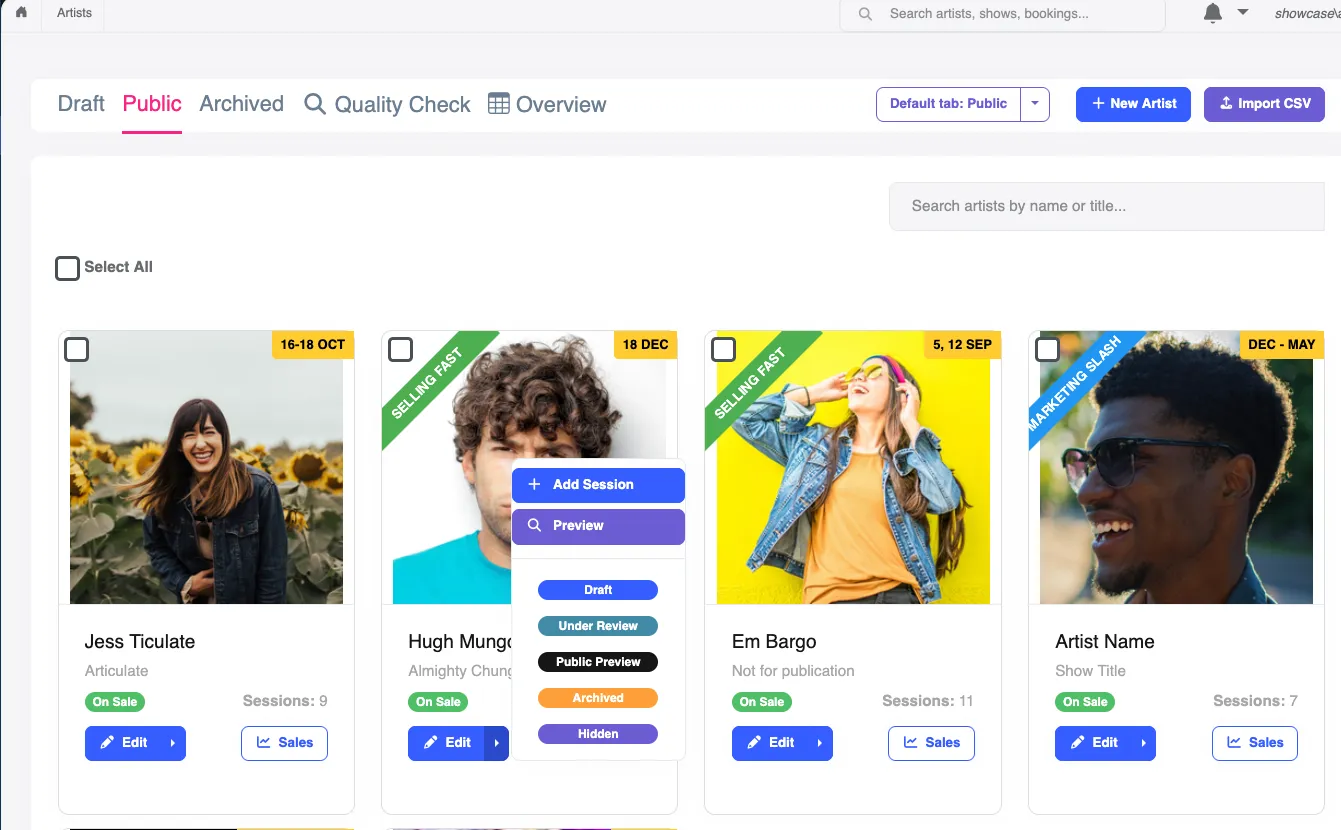
Section titled “Artist cards”Each artist is shown as a card with their profile image, name, show title, status, and number of sessions. If you’ve set a marketing slash (e.g. Selling Fast) or show dates for the artist, they appear on the card too.
- Click the image, or Edit, to open the artist.
- Click the arrow next to Edit for more options:
- Add Session creates a session for this artist.
- Preview shows the artist’s page as it will look on your website.
- Delete is only offered for artists in Draft or Archived.
- Choose a status, e.g. On Sale or Archived, to change the artist’s status straight away.
- Sales opens the artist’s ticket sales. It appears for artists with sessions ticketed through Funny Little Shows.
Change the order on your website
Section titled “Change the order on your website”The order of the cards is the order artists appear on your website. To change it, drag a card to a new position. The new order is saved straight away.
On a phone, dragging is turned off. Use the up and down arrow buttons on each card instead.
If any of the artists you moved are public, the new order is added to your unpublished changes. Publish your website to update the order on your site. A Quick publish is all that’s needed.
Change many artists at once
Section titled “Change many artists at once”Tick the checkbox on each artist you want to change, or tick Select All to select every artist on the current tab. A toolbar appears showing how many artists you’ve selected, with these actions:
| Action | What it does |
|---|---|
| Change Status | Moves every selected artist to the status you choose, e.g. from Draft to Public Preview when you announce your program. |
| Export CSV | Downloads the selected artists as a spreadsheet file. |
| New Discount | Creates a discount that applies to the selected artists. Available on the Draft and Public tabs when ticketing is turned on. |
| Delete Selected | Deletes the selected artists. Available on the Draft and Archived tabs. |
| Clear Selection | Unticks every artist. |
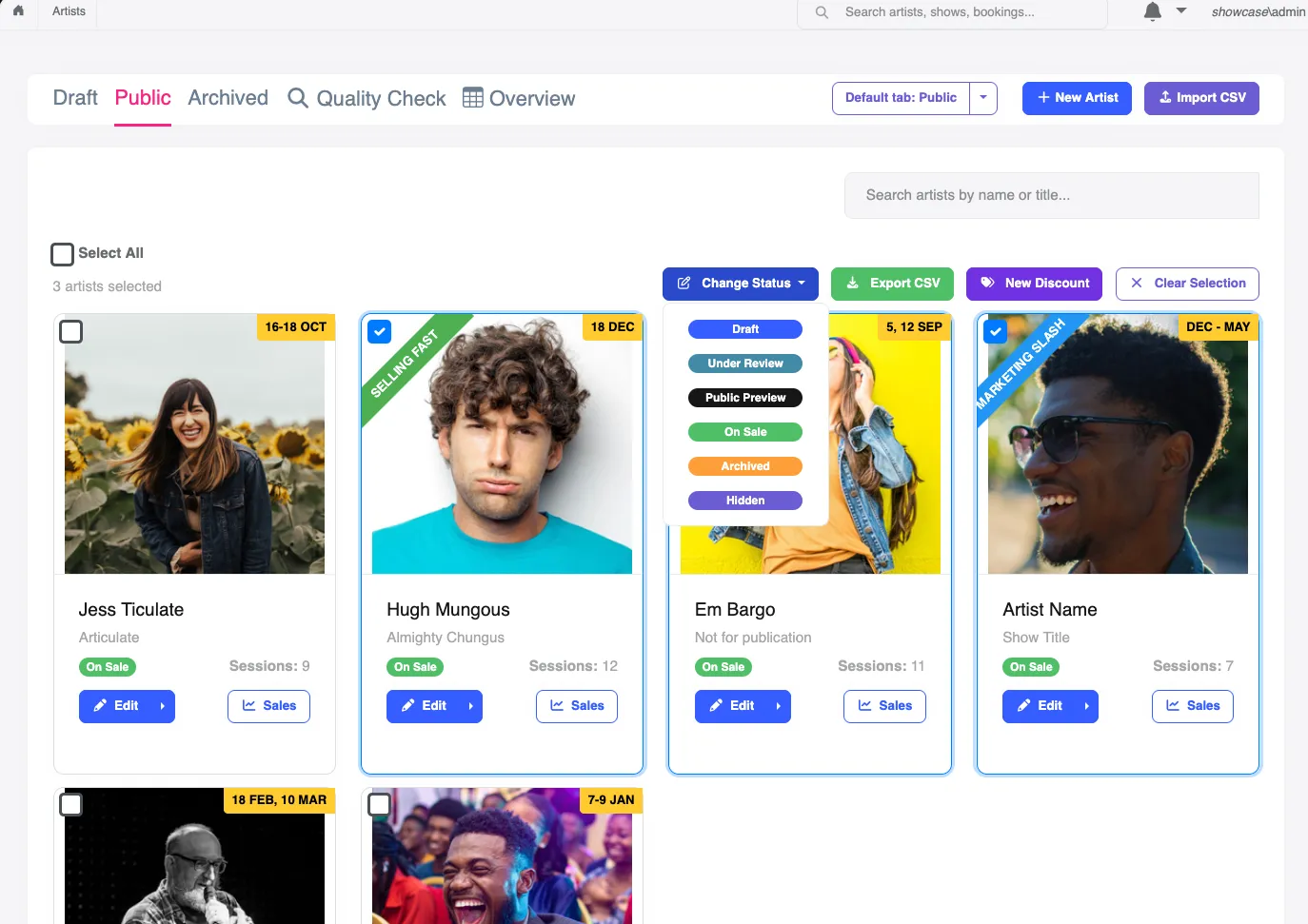
Changing a public artist’s status, e.g. to Archived, is added to your unpublished changes. Publish your website for it to take effect.
Import artists from a spreadsheet
Section titled “Import artists from a spreadsheet”To add many artists at once, click Import CSV at the top of the page and upload a CSV file. This is useful when setting up a festival program. Once your artists are in, you can add their images in one go with Artist Images.