Room Management
A Room is where you’ll host your Sessions.
Creating a Room
Section titled “Creating a Room”Before you can schedule a show you need at least one room.
- Go to Rooms in the left sidebar.
- Click New Room.
- Fill in the Location, Venue, Timezone fields.
- Set Ticket Management to External or Internal - this is just a default value and can be changed per Session.
- If you set a Default Capacity, this will help you when setting up Tickets for Sessions in this room later on
- Address is optional at this stage but highly recommended, it helps your customers know where to go!
- Click Save.
On Website
Section titled “On Website”Rooms have a toggle field On website which allows you to list these on the Locations page of your website. You can use this to only show regular rooms you want to associate with your events, but still host a one-off or irregular gig in a room but not list it on your website. For all Sessions the Room and Address is clearly displayed, this Locations page on your website is automatically generated with a list of Rooms where this field is set to On.
Sort Order
Section titled “Sort Order”The Sort Order field lets you control the order in which these rooms are listed on your website. After sorting by this field, the Location field is used next (alphabetical sorting). You would use the Sort Order field to discretely control the order of these rooms where the alphabetical sorting doesn’t suit your needs.
Default Comp Tickets
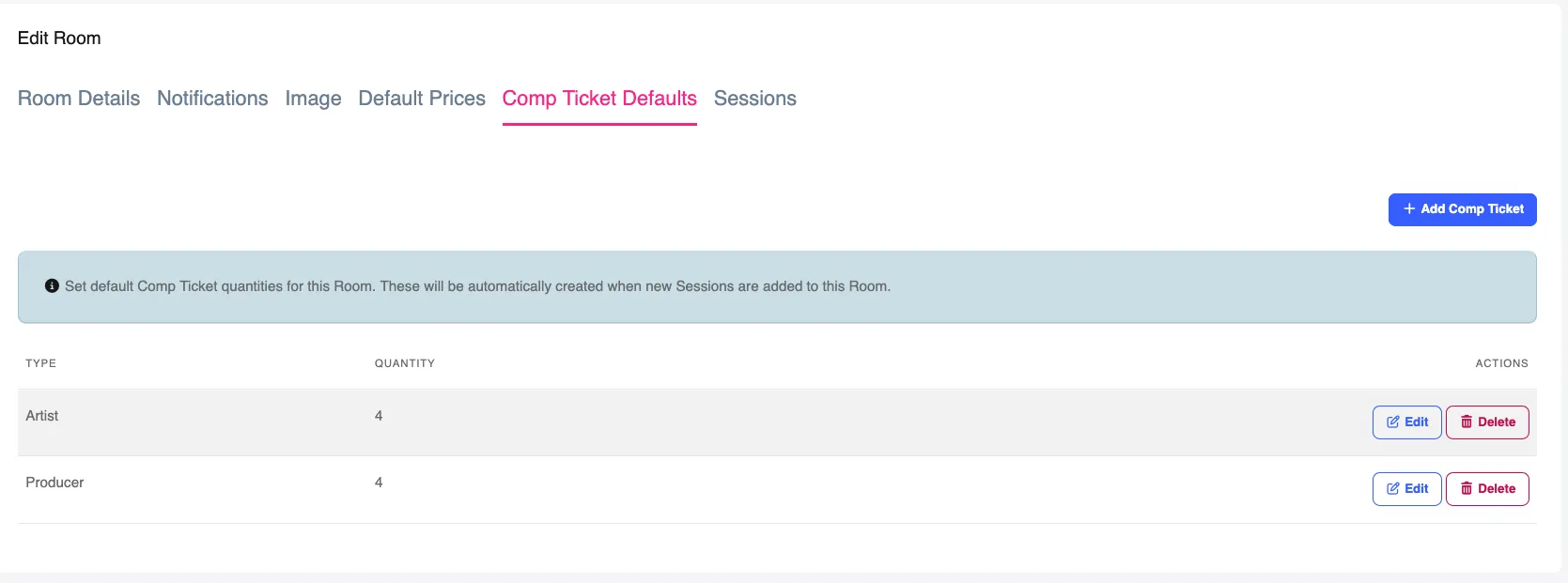
Section titled “Default Comp Tickets”Room based rules for the default Comp Tickets of each type can be defined. These Comp Tickets can be set aside for tickets sold through Funny Little Shows, or even used for shows where ticketing is managed externally. For example, if your 100 capacity room typically has 4 x Artist Comp Tickets reserved, and 4 Producer Comp Tickets reserved you can create these under the Comp Ticket Defaults tab. When a new Session is linked to this room, an initial pool of Comp Tickets is created using these quantities. See example below.
See Manage Comp Tickets for more information.
Default Prices
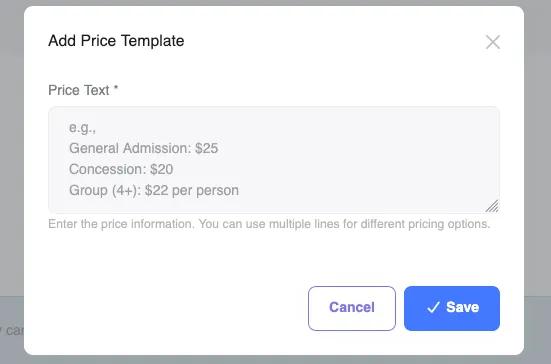
Section titled “Default Prices”If this room uses external ticketing (sad!) and you have regular prices for gigs there, you can set a default price text to save you time when scheduling a Session.
- Click the Default Prices tab.
- Click + Add Price Option
- Enter your Price Text blurb and click Save.