Managing Comp Tickets
This covers Comp Tickets in the context of selling tickets through Funny Little Shows. For Comp Tickets management with external ticketing systems, see this other page.
Comp Tickets Recap
Section titled “Comp Tickets Recap”When you create a Session with Funny Little Shows, you can optionally set aside some Comp Tickets. These come in three main flavours: Artist, Producer and Producer Extra. These are set aside from the sales pool and allocated to VIPs / guests / sponsors etc. You can set up the number of Comp Tickets for a Session using the Room based default rules, or manually. As you get closer to the date of the perfomance, you can release any unused comp tickets back into the sales pool. You can schedule this to be automatic, or do it manually at any time.
Comp Tickets are hidden from public view, not available to purchase. They are for internal use only.
Lifecycle
Section titled “Lifecycle”There’s a simple status flow of Comp Tickets:
- Unallocated
- Allocated (Held)
- Issued (converted to a real ticket)
- Released (unused, returned to sale)
Creating Comp Tickets
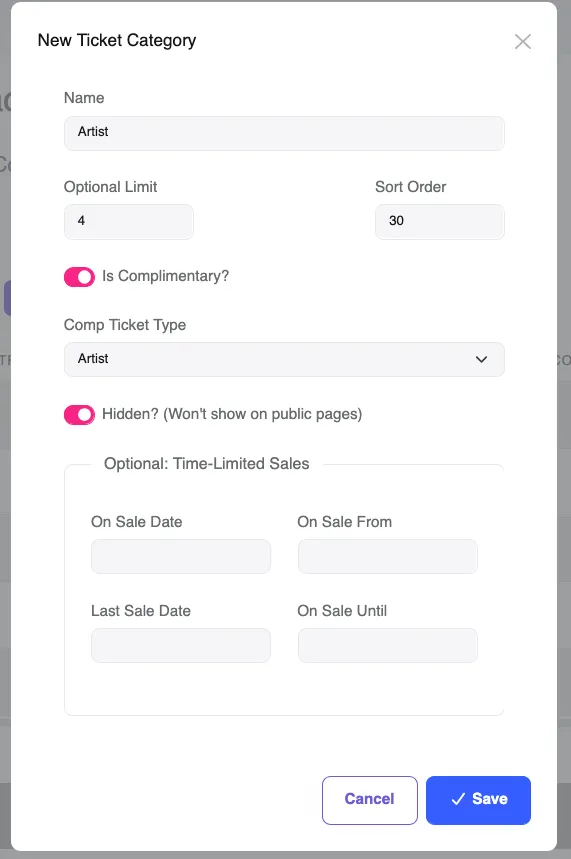
Section titled “Creating Comp Tickets”On the Pricing tab for an individual Session, you can add a new Ticket Category. At the dialog that appears, set the “Is Complimentary” to on, and then select the type of Comp Ticket: Artist, Producer or Producer Extra. Importantly you have to set a quantity - how many of this type of Comp Ticket should be available for this Session?
The result is you’ll see a new Ticket Category row added to the list, like the example below which shows Artist, Venue and Producer Comp Tickets.
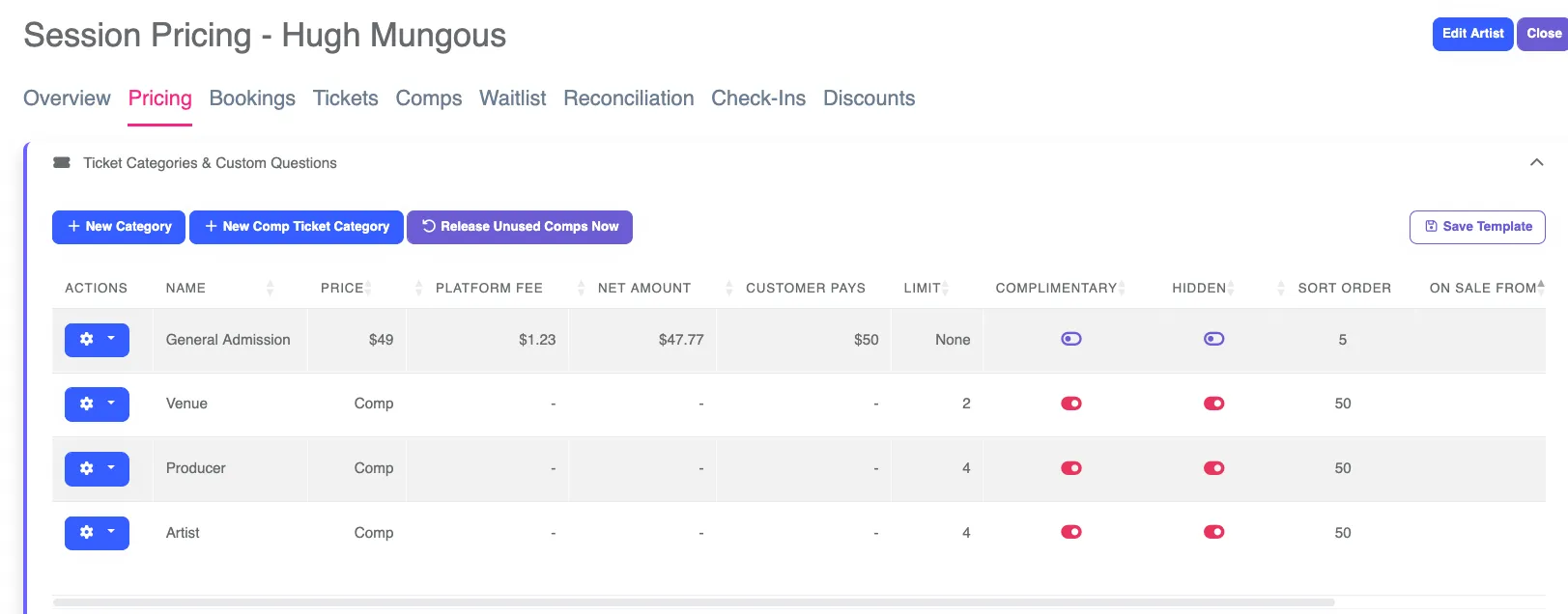
Creating Comp Tickets reduces the number of tickets available for sale. Let’s look at an example where Session has 100 tickets available for sale. Creating 4 x Comp Tickets for Artist, and 2 x Comp Tickets for Producer means only 94 tickets are available for sale. The 100 capacity remains as is, this is physical capacity in the room. The 6 Comp Tickets have been removed from sale and reserved for allocation as needed.
Holding Comp Tickets
Section titled “Holding Comp Tickets”Creating Comp Tickets merely reserves a pool so they are not sold. You can hold them - this simply puts a name next to one or more Comp Tickets. Typically it is the person who will use the Comp Ticket (e.g. mate of the comedian, or sponsor of your festival etc). To hold one or more Comp Tickets:
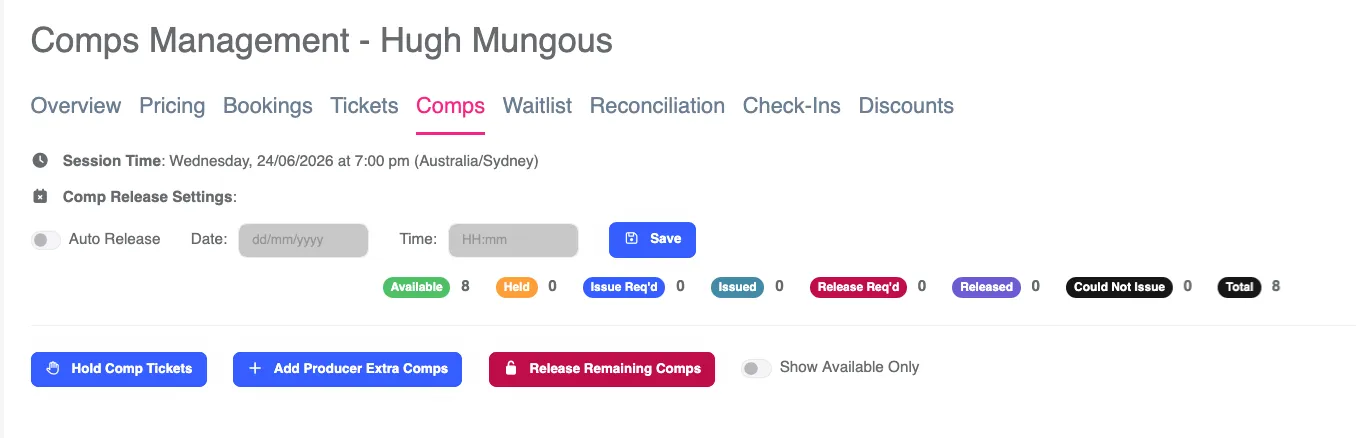
- From the Comps tab of a Session
- Click the Hold Comp Tickets button.
- Select the type (e.g. Artist, Producer, Producer Extra)
- Enter Quantity
- Provide the name and contact details of the recipient
- Click the Hold button
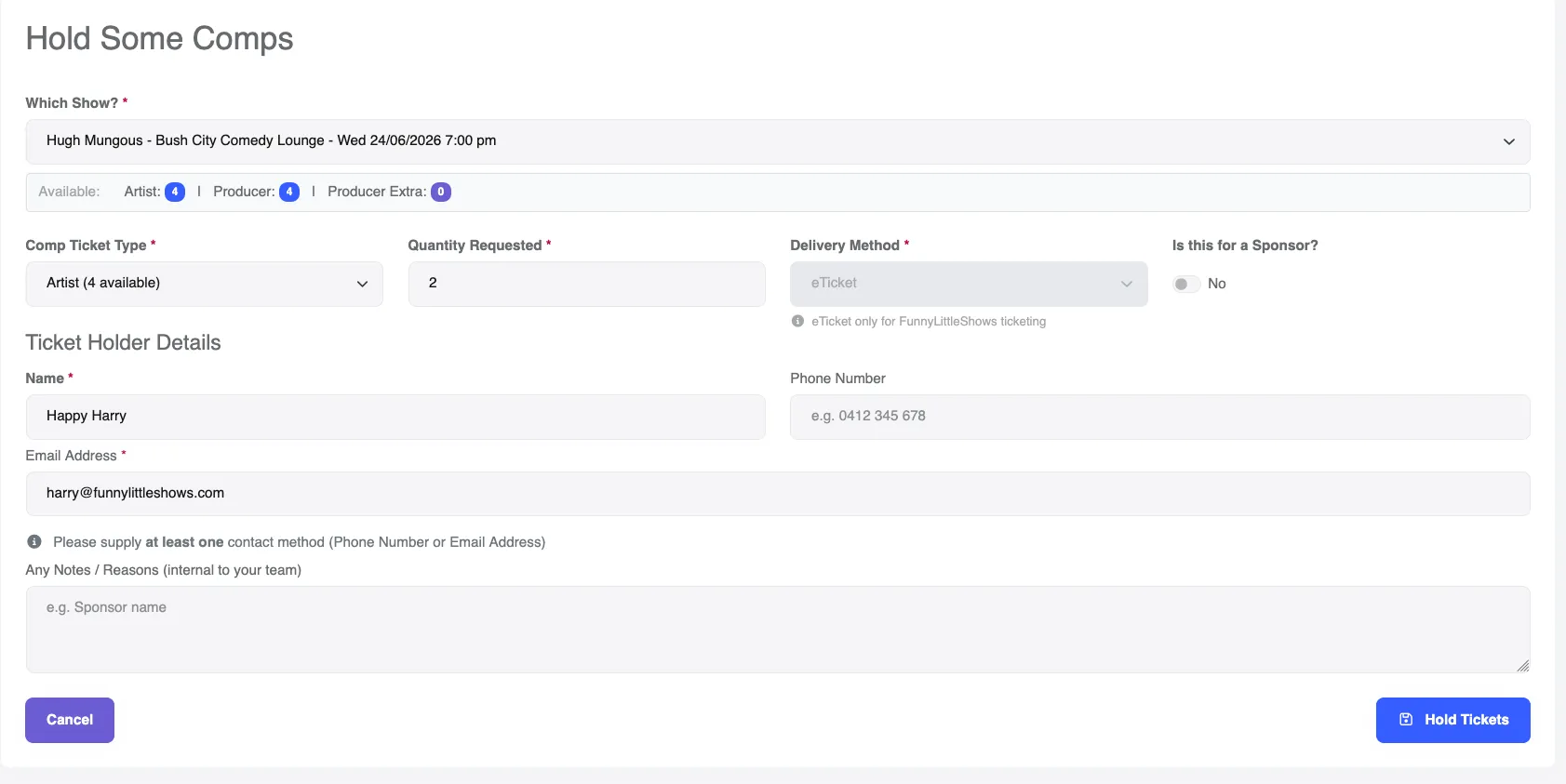
Sometimes you don’t know the final name, for example you’re setting aside two comp tickets for a radio giveaway contest. You can just put a note (like the name of the radio station) down in the name field. Holding Comp Tickets is just putting a name next to them, they are not real tickets until we Issue them.
Issuing Comp Tickets
Section titled “Issuing Comp Tickets”Issuing tickets is where we create actual tickets for the recipients. You can choose to do this immediately after the Comp Tickets were held, or at a later time. When you Issue Comp Tickets, the email address you provided when holding will receive a Booking email with the QR codes for the tickets, and link to all the tickets for download. This makes the tickets real and they can be used to enter the room when scanned by the mobile app. Similarly the name used for the Booking is on the list, so door staff can also manually find the booking / ticket when they arrive.
Comp Tickets incur no platform fees for the promoter.
Releasing Comp Tickets
Section titled “Releasing Comp Tickets”Manually
Section titled “Manually”If you no longer need to reserve Comp Tickets and want to make them available for sale, you can release them. You can do this any time from the Comps tab by clicking the Release Remaining Comps button.
This will change the status of any Unallocated Comp Tickets and increase the number of tickets available for sale by that amount. For example if there were 8 Comp Tickets initially created, 4 have been used and 4 are unused, Release Remaining Comps will return 4 for sale. If the remaining number of tickets available to purchase was 10, releasing these 4 will increase that to 14. The overall Capacity stays the same, that is the physical capacity of the room.
Automatically Releasing Comp Tickets
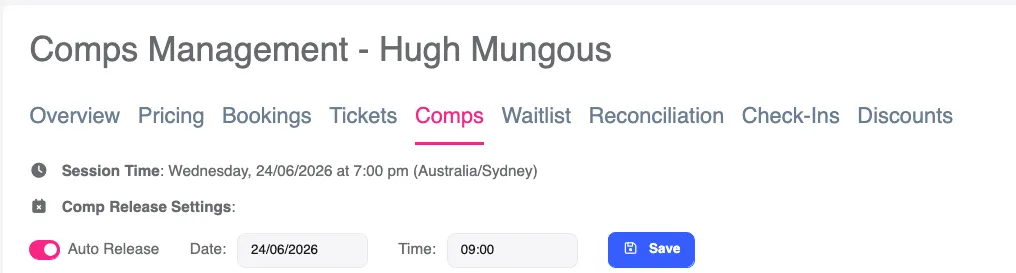
Section titled “Automatically Releasing Comp Tickets”Save yourself some time and automatically release unused Comp Tickets according to a schedule. Great if you’re running a large festival with many shows on each day, or just for automation in general.
On the Comps tab of the Session, set the Auto Release field to on, and then confirm the date / time that you want these released. This defaults to 9am of the day of the performance. At this date / time the system will release any unused comp tickets, returning them to sale.
Create some more Comp Tickets
Section titled “Create some more Comp Tickets”If you’ve exhausted all the Comp Tickets for a Session but want to add more (slow sales, additional requests from VIPs etc), you can create more Producer Extra Comp Tickets. You can only do this if there were tickets remaining for sale, as additional Comp Tickets are reducing this pool. We use the type Producer Extra to distinguish between the original Producer allocation and these other ones which are typically over and above original planned or contractual amount. Reports later show the difference.
What Comps Are Available?
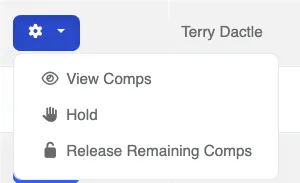
Section titled “What Comps Are Available?”The above steps are all in the context of a single Session. If you have multiple shows like a large festival, there’s another way to view Comp Tickets across all Sessions. In the left-hand menu, click Comp Tickets. The What’s Available screen will show all future sessions and the count of Comp Tickets available. Perfect for finding free tickets for a VIP or Partner who isn’t after a specific show. See example below.
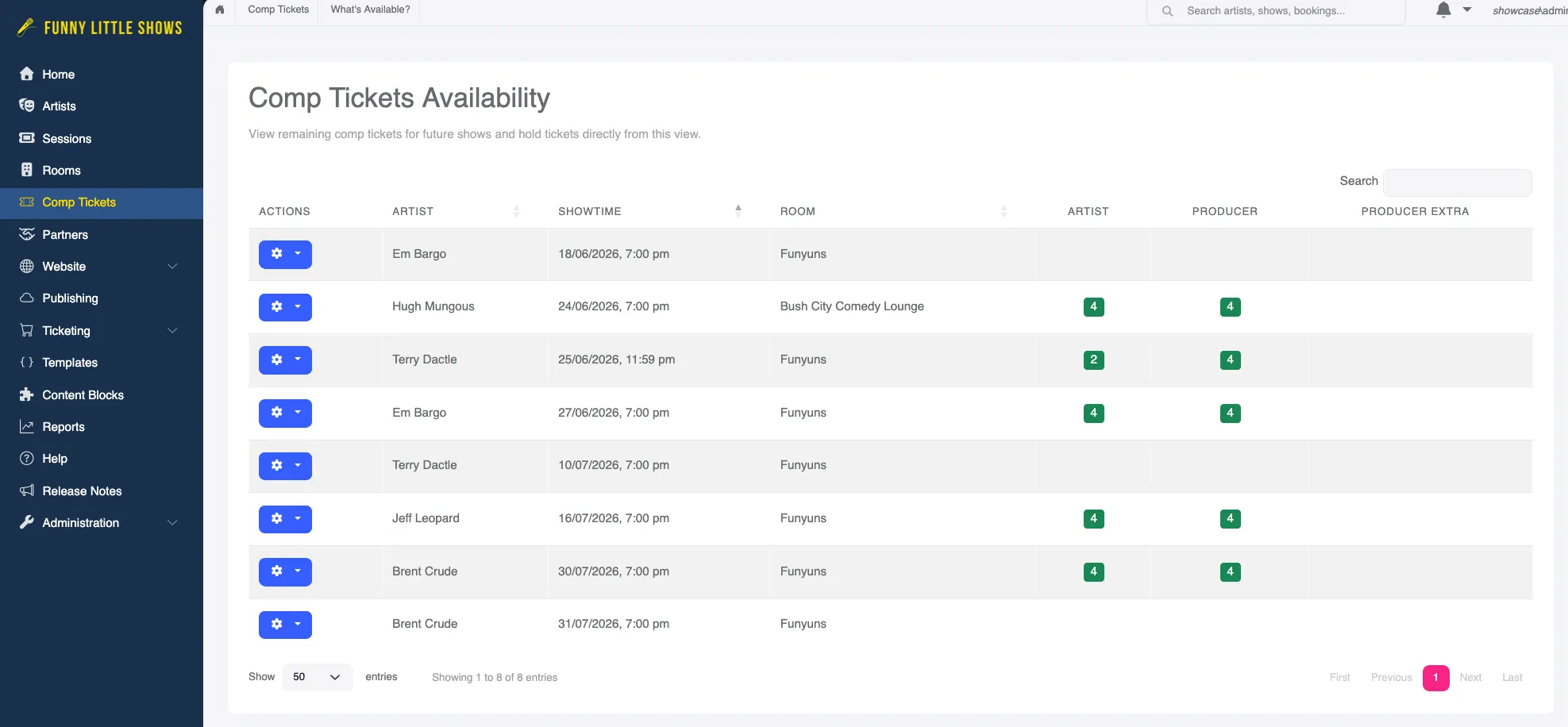
To Hold Tickets for a particular session, click the blue button on that row and select Hold. You’ll be taken to the Hold screen. Alternatively used this screen to Release tickets Session by Session.