
Sessions
The Sessions page lists every session (performance) across all your artists and rooms. From here you can find a session, check it’s ready to go on sale, and jump straight to its pricing, bookings, comps and more.
For the basics of creating a session and what each status means, see Session Management.
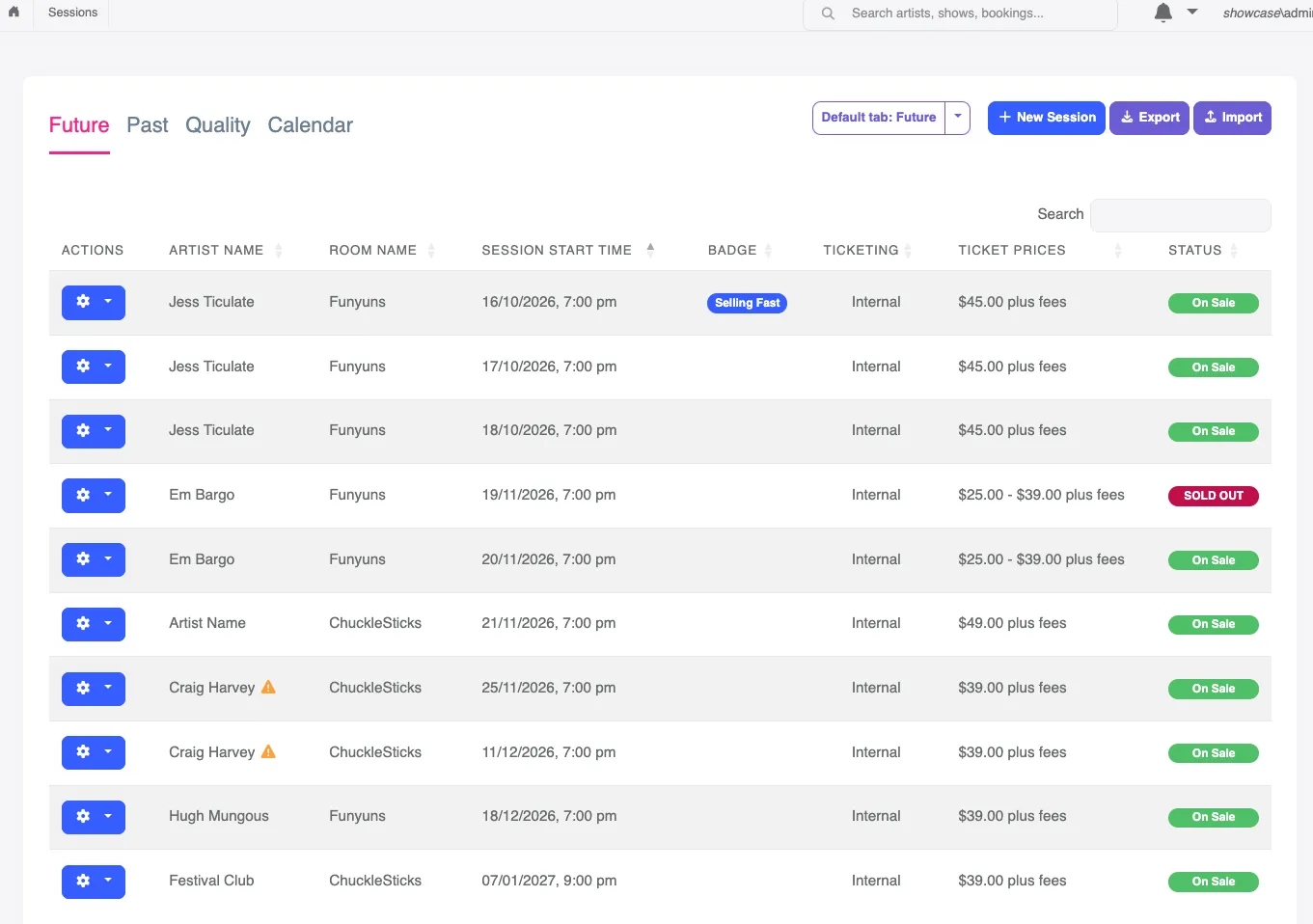
| Tab | What it shows |
|---|---|
| Future | Upcoming sessions, soonest first. |
| Past | Sessions that have already happened, most recent first. |
| Quality | Upcoming sessions, checked for missing or incorrect details. See Check sessions for problems. |
| Calendar | Your sessions on a month or week calendar. |
Choose your default tab
Section titled “Choose your default tab”The Sessions page opens on the Future tab unless you choose otherwise. To open on a different tab, click the arrow next to Default tab and pick one.
This setting is saved for you only. Other people using your account keep their own default tab.
Search
Section titled “Search”Type in the search box to find sessions by Artist Name or Show Title.
The session list
Section titled “The session list”On the Future and Past tabs, each session shows its artist, room, date and time, badge, ticketing type, ticket prices and status.
Watch out for these warnings:
- A ⚠ next to an artist’s name means the artist isn’t public yet. The session’s page and ticket link won’t work on your website until the artist is Public Preview or On Sale.
- No pricing in the Ticket Prices column means the session is ticketed through Funny Little Shows but has no ticket categories, so tickets can’t be sold. Click it to set pricing.
Actions menu
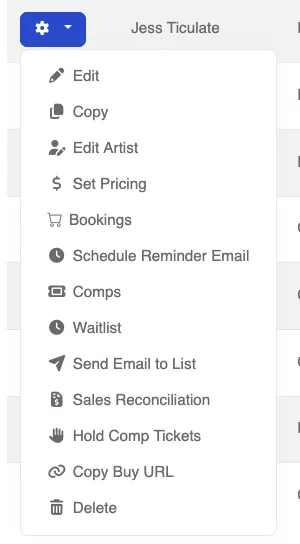
Section titled “Actions menu”In the Actions column, click the button on a session’s row to see what you can do with it. Some options only appear when they apply, e.g. for sessions ticketed through Funny Little Shows, or with a waitlist turned on.
| Action | What it does |
|---|---|
| Edit | Opens the session to change its details. |
| Copy | Creates a new session based on this one. See Copy a session. |
| Copy Buy URL | Copies the session’s buy-tickets link, ready to paste into an email, social media post or ad. |
| Edit Artist | Opens the artist this session belongs to. |
| Set Pricing | Sets ticket categories and prices. See Set Pricing. |
| Bookings | Shows the tickets sold for this session. |
| Comps | Manages complimentary tickets. See Manage Comp Tickets. |
| Hold Comp Tickets | Sets aside comp tickets for this session. Festival websites only. |
| Schedule Reminder Email | Sends ticket holders a reminder email before the show. |
| Waitlist | Shows who’s waiting for tickets, when the waitlist is turned on. See Waitlist. |
| Send Email to List | Emails everyone on the waitlist, e.g. when tickets come back. |
| Sales Reconciliation | Reviews this session’s sales. See Sales Reconciliation. |
| Delete | Deletes the session, after asking you to confirm. |
Copy a session
Section titled “Copy a session”Copy is the quickest way to add another session for the same show, e.g. the next night of a run.
- Open the actions menu on the session you want to copy and click Copy.
- Change the Session Date and Session Time, and the Room if needed.
- Click Save.
The new session keeps the original’s details. For sessions ticketed through Funny Little Shows, this includes ticket pricing, comp tickets and pre-sale settings, but not any bookings. Sales and pre-sale dates move forward by the same amount as the session date, so they stay the same number of days before the show.
Copy Buy URL
Section titled “Copy Buy URL”Copy Buy URL copies the link people use to buy tickets for that session. It’s available for sessions ticketed through Funny Little Shows.
If the artist isn’t public yet, you’ll see a warning when you copy the link. The link won’t work until you make the artist Public Preview or On Sale and publish your website.
Check sessions for problems
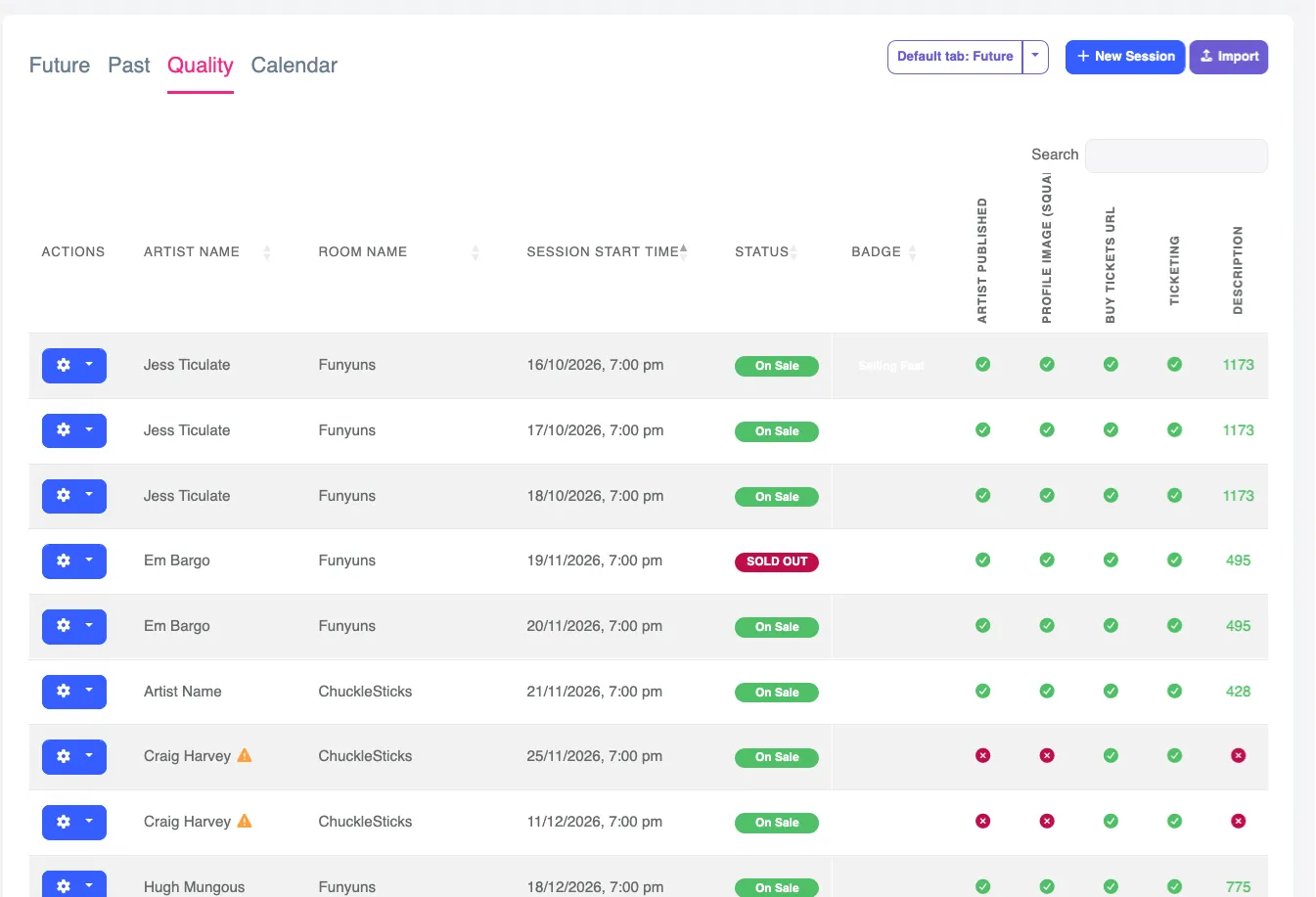
Section titled “Check sessions for problems”The Quality tab checks every upcoming session for common problems before your audience finds them. Each column is a check. A green tick means it’s fine, an amber warning is worth checking, and a red cross needs fixing.
| Check | What it looks for |
|---|---|
| Artist Published | The artist is public. A session can be On Sale while its artist is still in Draft, which leaves a broken ticket link on your website. |
| Profile Image (Square) | The artist has a profile image. |
| Buy Tickets URL | Sessions ticketed elsewhere have a link to where tickets are sold. |
| Ticketing | Sessions ticketed through Funny Little Shows have ticket categories set up. Sessions ticketed elsewhere have their ticket prices filled in. |
| Description | How long the artist’s description is. It’s shown in amber if under 200 characters, and red if there’s no description. |
| Duration (in minutes) | The session’s length, so you can spot mistakes like a 600-minute show. |
| Schedule Clash | Whether this session overlaps with another session. Click the red cross to see which sessions clash. |
The Quality tab also shows the artist, room, date and time, status and badge, and lists up to 100 sessions per page.
Calendar
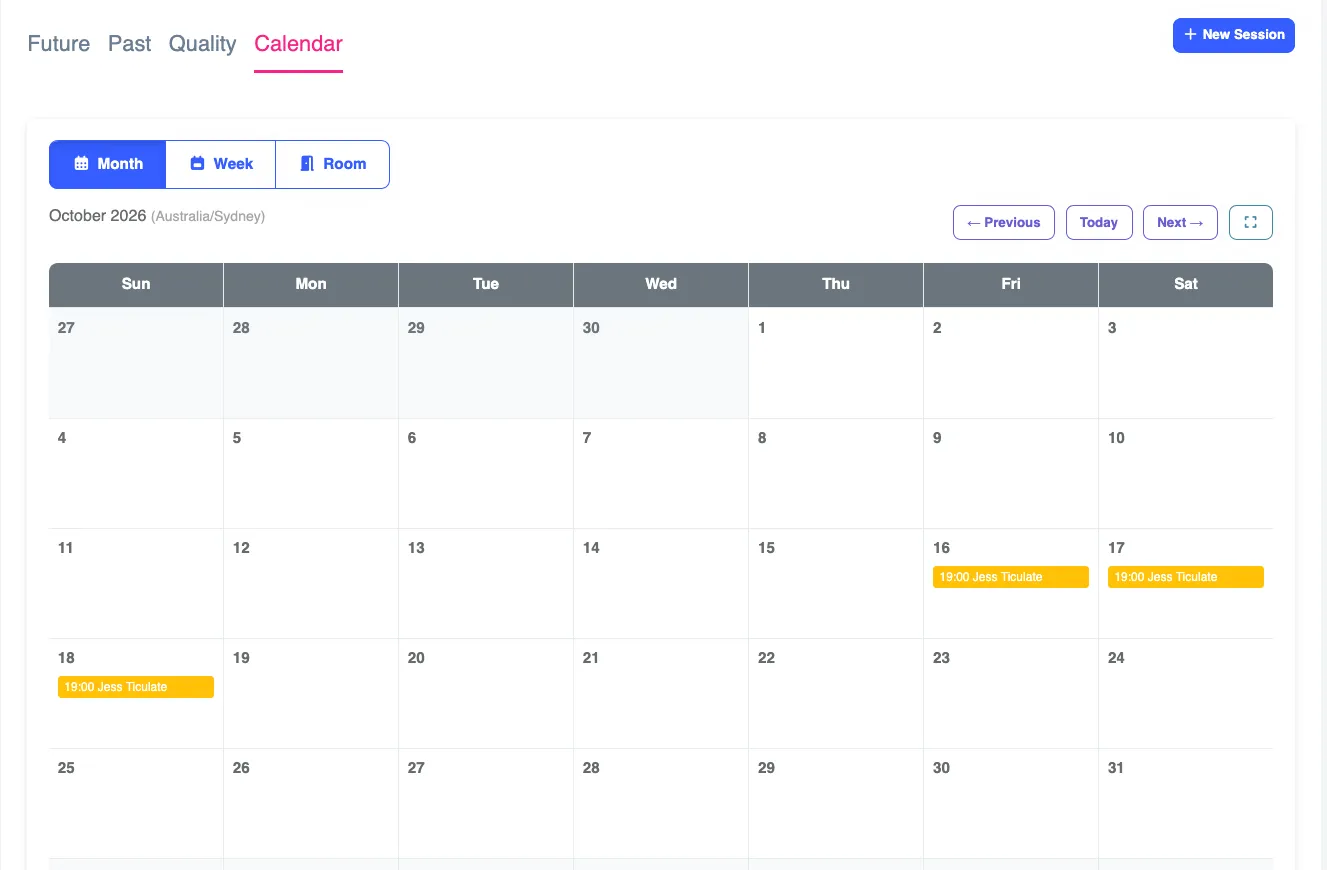
Section titled “Calendar”The Calendar tab shows your sessions on a calendar, which makes gaps and busy nights easy to see. Switch between month and week views.
Import and export sessions
Section titled “Import and export sessions”- Import adds many sessions at once from a CSV file. You can download a template to fill in.
- Export downloads your upcoming sessions as a CSV spreadsheet. It’s available on festival websites, from the Future tab.